The portal

Everything your team can do with a flight, once it lands.

18 tools across 6 areas of the portal. No licences to buy, nothing to install, and the same view for the owner, the GC and every sub you invite.

Map and timeline

Every flight of a site on one map, at the resolution it was actually flown.

Orthomosaic map

Your flight becomes a single top-down image of the site, tiled so it stays sharp as you zoom to the resolution it was flown at. It sits over a satellite or street basemap, and a slider fades it so you can see what is underneath.

How it works

  1. 01Pick a flight. The map opens on that flight's imagery, zoomed to the site.
  2. 02Switch the basemap between satellite and streets, or hide the flight image entirely.
  3. 03Fade the flight image with the opacity slider to line it up against what was there before.

What you get

One link that shows the site as it was on the day it was flown — no install, no viewer to download, nothing to reconcile between two people's screens.

Orthomosaic map
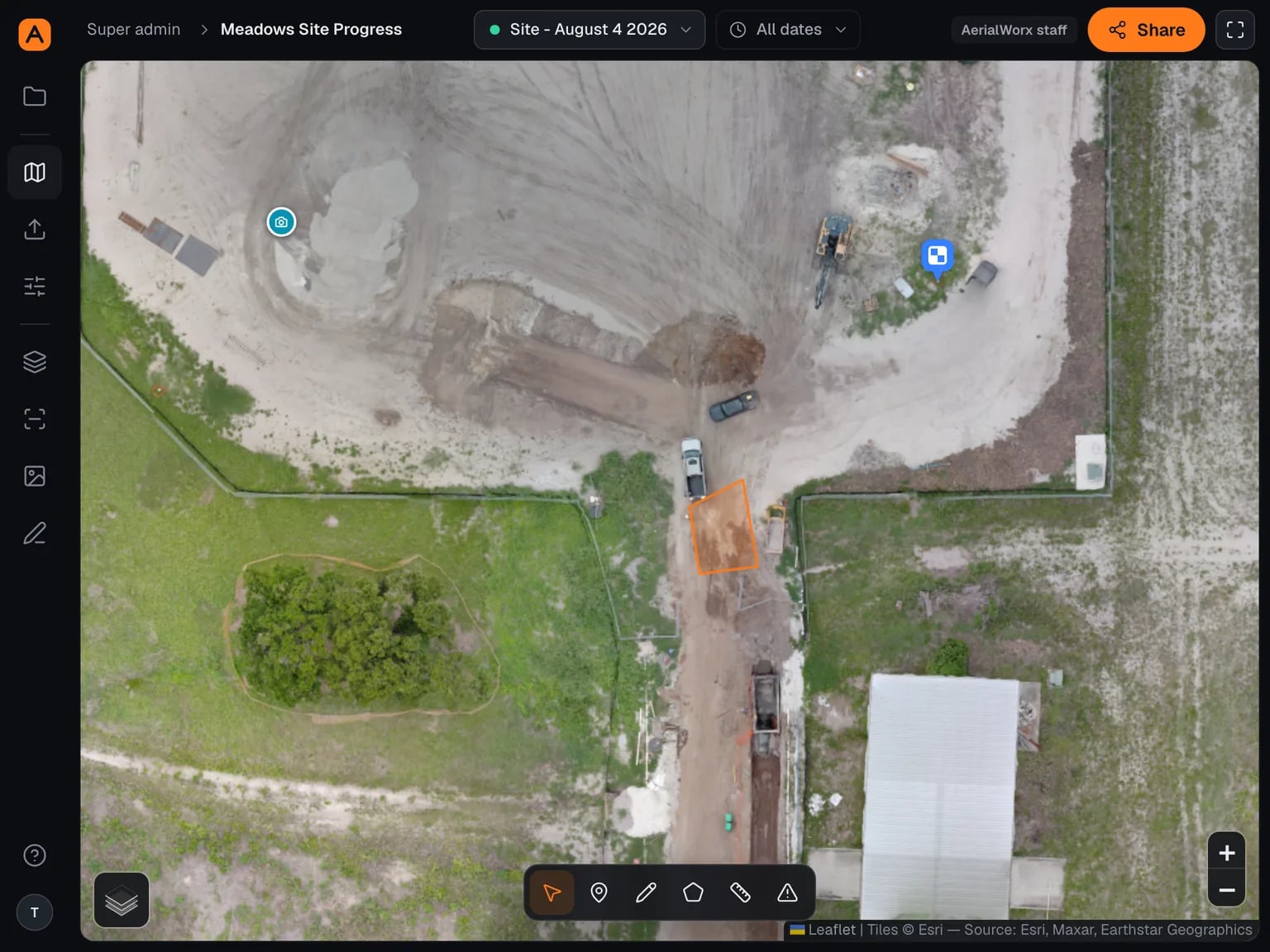
Orthomosaic map of a site

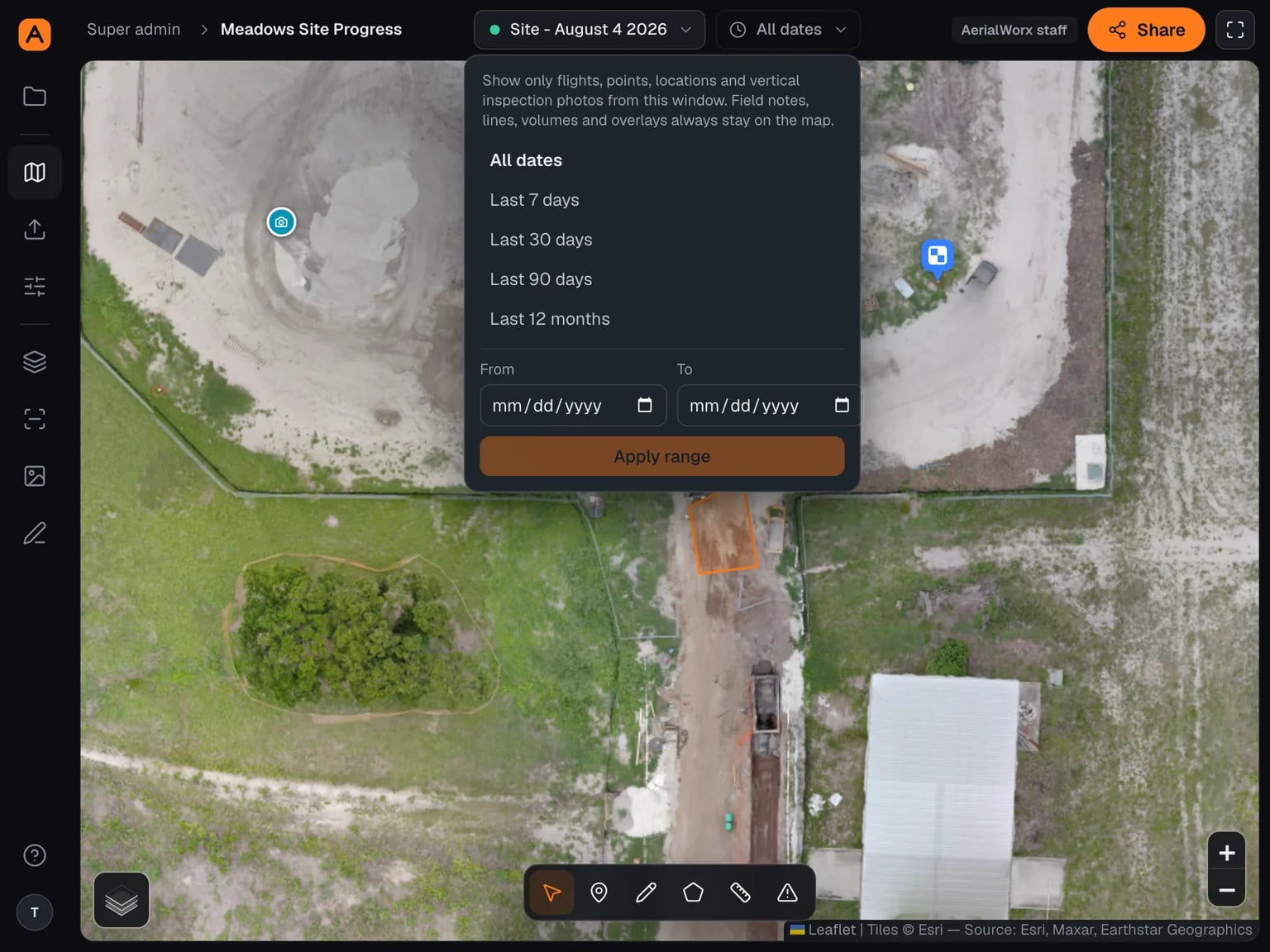
Flight switcher and date filter

Every flight of the site stays available, not just the latest. A date filter narrows the flight picker, the points, the locations and the inspection photos to a window — last 7, 30 or 90 days, or dates you pick.

How it works

  1. 01Use the flight switcher to move between dates on the same map view.
  2. 02Set a range, and the whole project narrows to it.
  3. 03Send the link. The window travels with it, so the other person opens on what you were looking at.

What you get

A month-by-month record of the site that anyone can scrub through, instead of a folder of images nobody opens.

Flight switcher and date filter
Flight switcher with a date range applied

Flight photos on the map

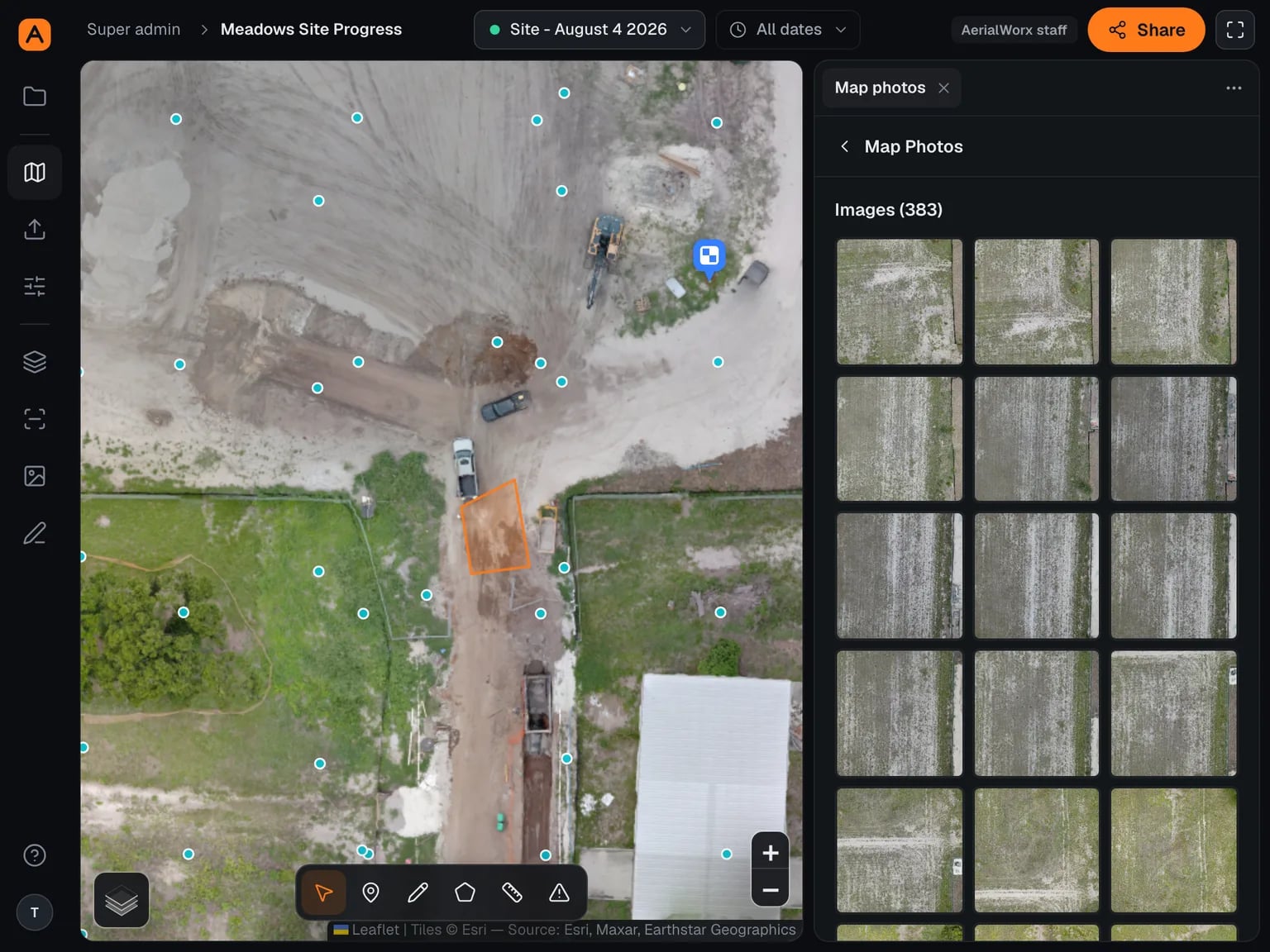
A dot for each photo in the flight, dropped at the position it was taken. Click one and it opens full-canvas with next and previous through the flight; the map pans to that spot so you keep your place.

How it works

  1. 01Turn on the photo layer for the flight you are looking at.
  2. 02Click a dot, or a thumbnail in the panel's grid.
  3. 03The preview appears immediately and the full-resolution image swaps in behind it.

What you get

The original image behind any part of the map, in seconds, without hunting through a shared drive of filenames.

Flight photos on the map
Photo positions marked across a site map

Elevation layer

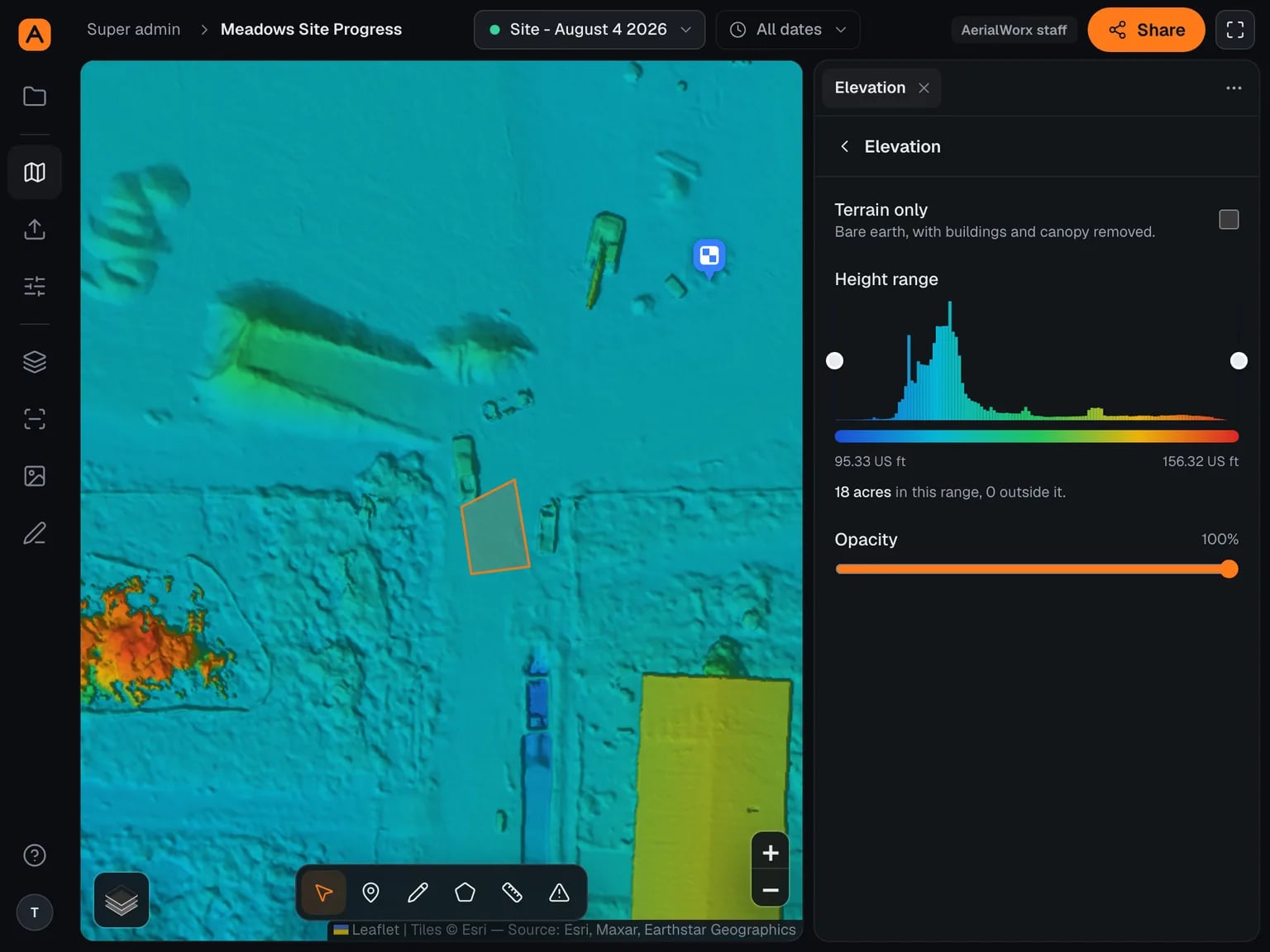
The flight's surface model drawn as a colour ramp over the map, so high and low ground read at a glance instead of one point at a time.

How it works

  1. 01Switch the elevation layer on for the flight.
  2. 02Narrow the band to the heights you care about, so the ramp is spent on the grade instead of on one tank or tree line.
  3. 03Switch to bare earth to drop the canopy, and fade the layer against the imagery to tie a height back to a feature on the ground.

What you get

Where the water will go, and which way the site falls, without walking it with a rod.

Elevation layer
Elevation colour ramp over a site

Measure

Lengths, areas, volumes and change between flights, in feet and cubic yards.

Line measurement and surface profile

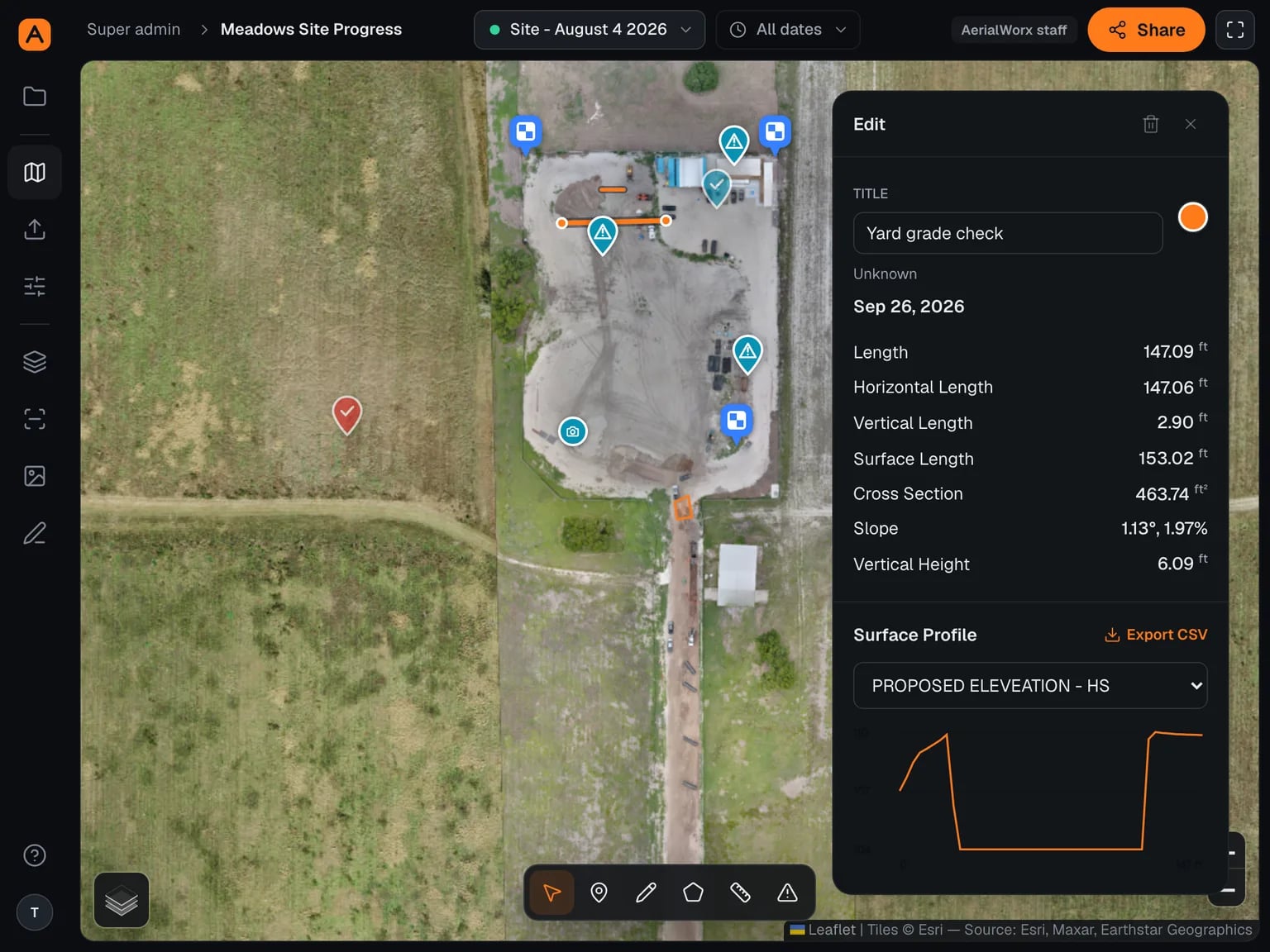
Click a path across the site and get its length three ways — straight, horizontal and following the ground — plus vertical rise, slope in degrees and percent, and the cross-section area between the ground and your endpoints. A profile chart draws the ground under the line, and you can run it against a design surface instead to see plan against built.

How it works

  1. 01Pick the line tool and click each point; double-click to finish.
  2. 02Read the lengths, slope and cross-section in the panel.
  3. 03Switch the profile between the flight's own surface and any design surface — it re-measures without saving, so you can try one first.

What you get

A defensible number for a haul road grade or a pipe run in under a minute, and a CSV of the profile when someone wants the points.

Line measurement and surface profile
A measured line across a site with its ground profile

Stockpile and earthwork volumes

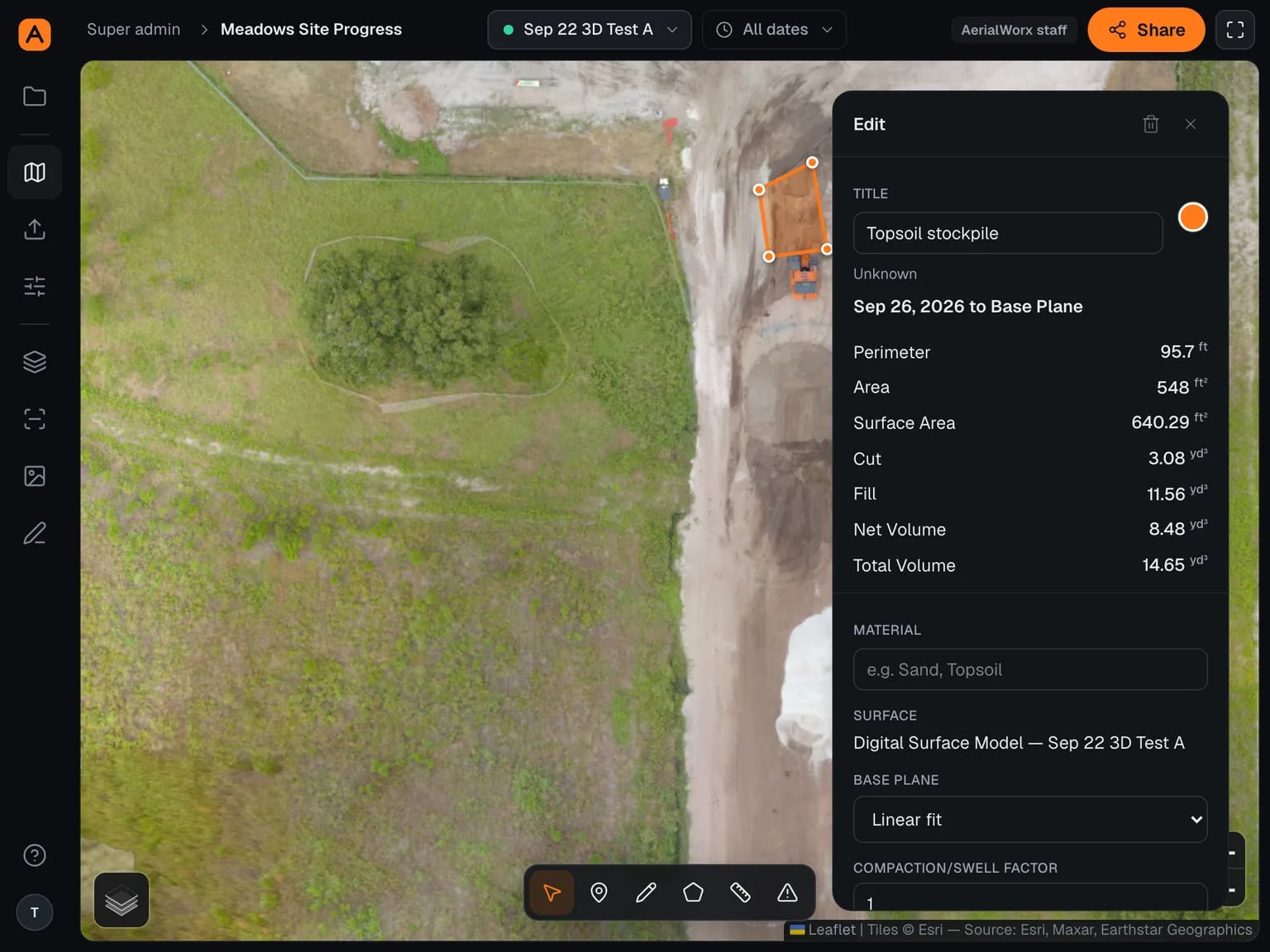
Draw a shape around a stockpile or an excavation and the surface inside it is measured against a base plane: cut, fill, net and total in cubic yards, plus perimeter, area and surface area. Choose how the base is worked out — linear fit, lowest or highest point, triangulated, a level you type in, or one of your design surfaces — and apply a compaction or swell factor. There is a 3D view with the flight's imagery draped over it.

How it works

  1. 01Draw the shape, then drag any vertex to tighten it — the numbers re-measure as you go.
  2. 02Pick the base plane and set a compaction or swell factor if the material needs one.
  3. 03Open it in 3D to sanity-check the shape, and take a CSV of the numbers.

What you get

A quantity for planning and progress tracking that you can show someone, with the assumptions visible next to it. For pay quantities, have your licensed surveyor verify.

Stockpile and earthwork volumes
A stockpile outlined on a site with its volume readout

Named locations

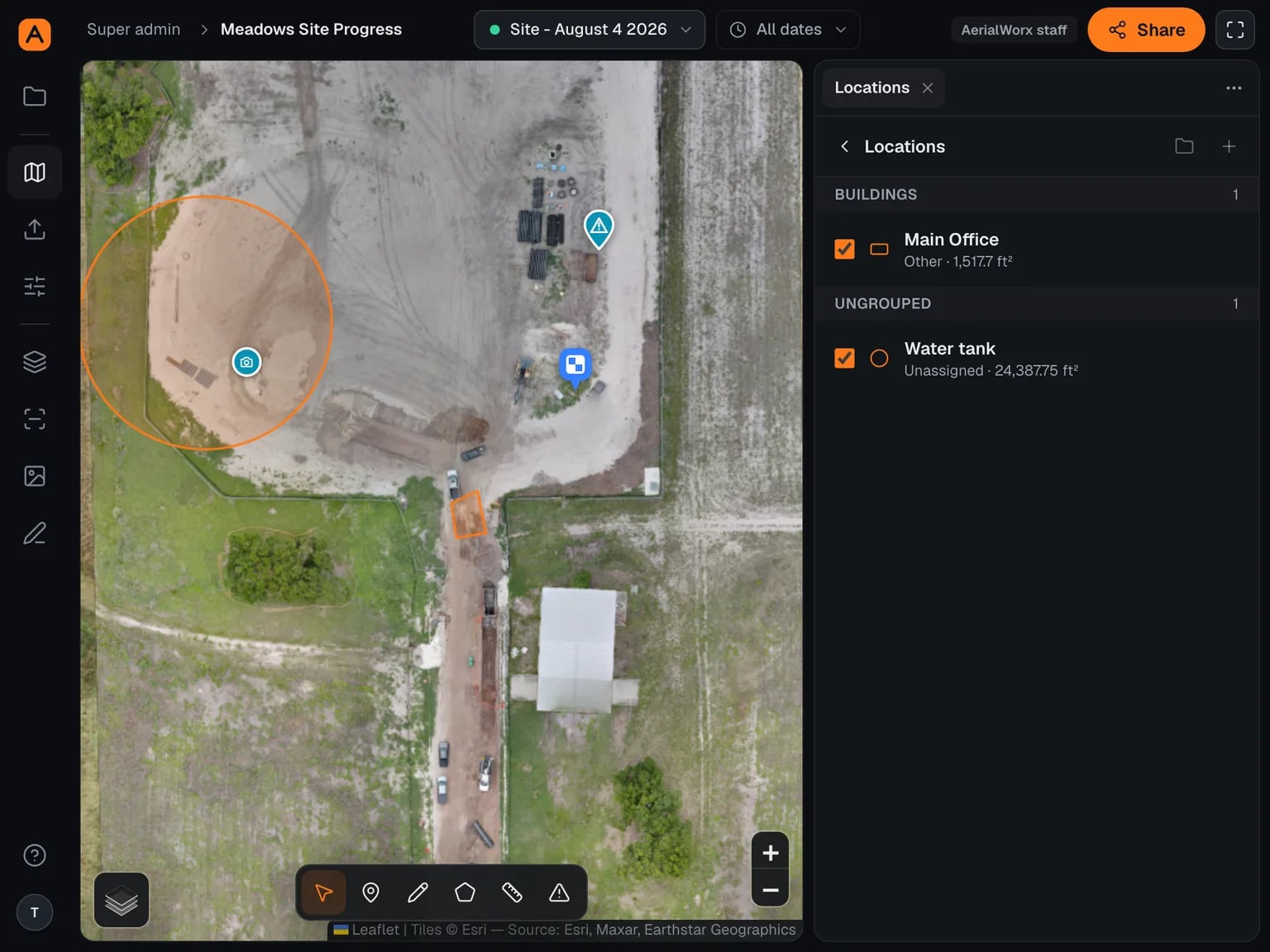
Draw a polygon, rectangle or circle around a building, a laydown yard, a stockpile or an access road, name it and file it in a folder. Locations carry their area in square feet, and they are what change is broken down by — so a cut/fill total arrives split by the areas you care about rather than as one site-wide figure.

How it works

  1. 01Pick a shape tool and draw. Name it, give it a type and a colour.
  2. 02Reshape it later by dragging a corner, adding one from a midpoint, or double-clicking one away.
  3. 03Photos taken inside a location are filed into it automatically.

What you get

Your site's own vocabulary applied to every measurement, instead of coordinates nobody recognises.

Named locations
Named areas outlined across a site

Design against built

Your drawings and design surfaces, laid over what is actually there.

Drawing overlays

Put a PDF or PNG site plan straight onto the map. The page is turned into an image in your browser, so what you preview is exactly what goes up, and white paper can be knocked out so only the linework floats over the imagery. Georeferenced orthophotos place themselves from the file.

How it works

  1. 01Upload the sheet and pick the page and resolution; knock out the white if you want the lines alone.
  2. 02Drag the corner handles to move, scale and rotate it into place — the bar shows its bearing and its size on the ground.
  3. 03Set its opacity, file it in a folder, and it is there for everyone on the project.

What you get

Plan against built in the same window, so a misplaced footing is a conversation today instead of an RFI next month.

Drawing overlays
A site plan aligned over aerial imagery
Overlay

Design surfaces

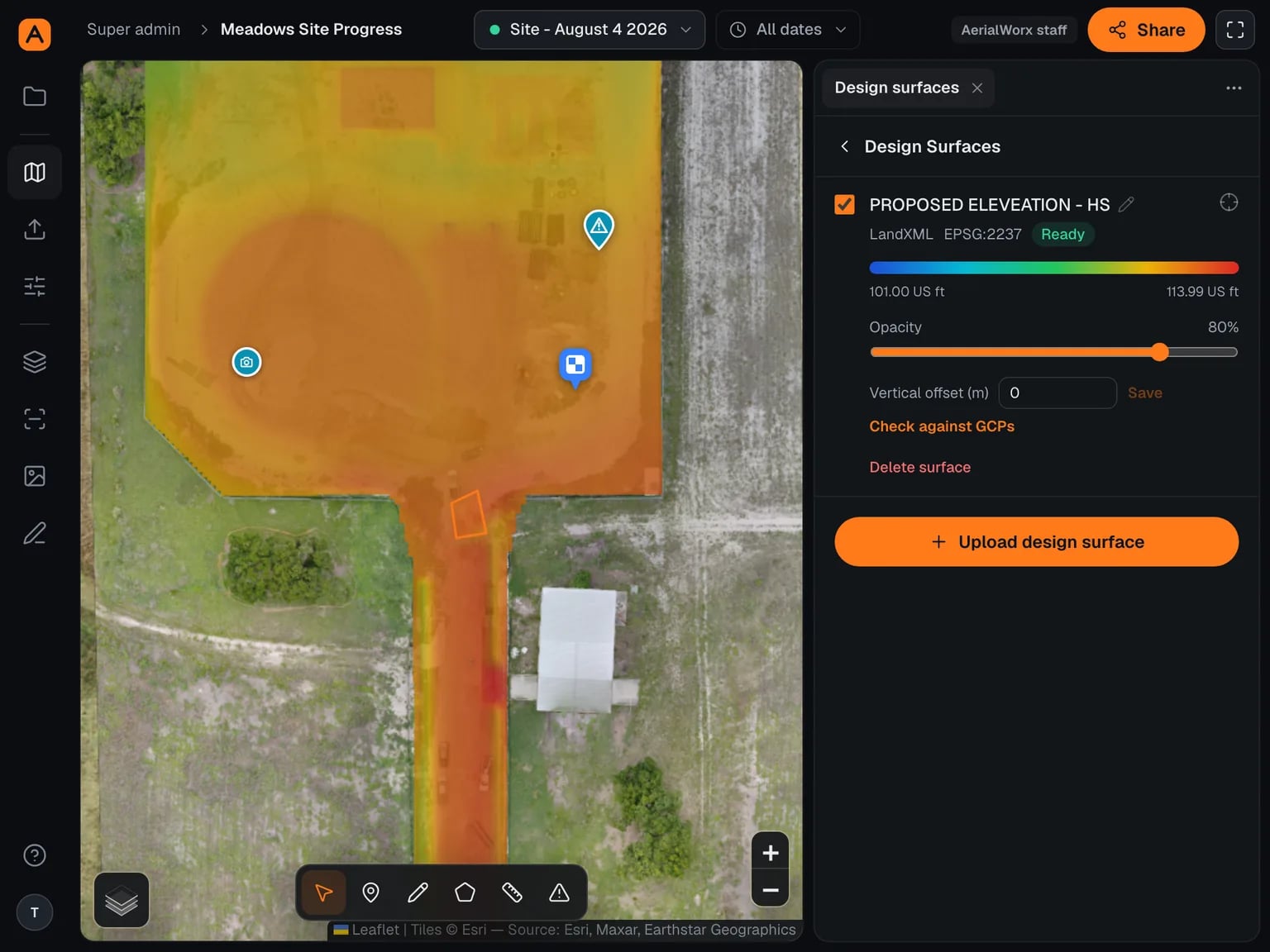
Bring in the designed surface as a GeoTIFF, DXF or LandXML. It is drawn with an elevation colour ramp in your units, and it becomes something to measure against: a profile under a line, a base plane for a volume, or the design side of a cut/fill comparison.

How it works

  1. 01Upload the file — DXF and LandXML carry no coordinate system, so you confirm the project's or pick another, and set the vertical unit.
  2. 02Calibrate it from your ground control points so the design and the flight agree on height.
  3. 03Set its opacity and offset, and it is available to every measuring tool.

What you get

One place where the design and the site are on the same datum, so the difference between them means something.

Design surfaces
A design surface drawn with an elevation ramp

Document and assign

Put a finding on the map, give it an owner, and close it out.

Points

Click the map to put down a point. It carries a title, a colour and a severity, its latitude and longitude, its northing and easting in the project's delivery coordinate system, and its height off the surface model with the datum named. Photos taken within about 20 metres are shown beside it, and your team can comment on it.

How it works

  1. 01Drop a pin where the issue is.
  2. 02Title it and set the severity; the coordinates and height fill themselves in.
  3. 03Open a nearby photo to show someone what you mean.

What you get

A location anyone can find again — in the field, in a coordinate list, or in the photo that shows it.

Points
A point on the map with its coordinates and nearby photos
N 1,289,441.2 · E 512,880.7

Field notes

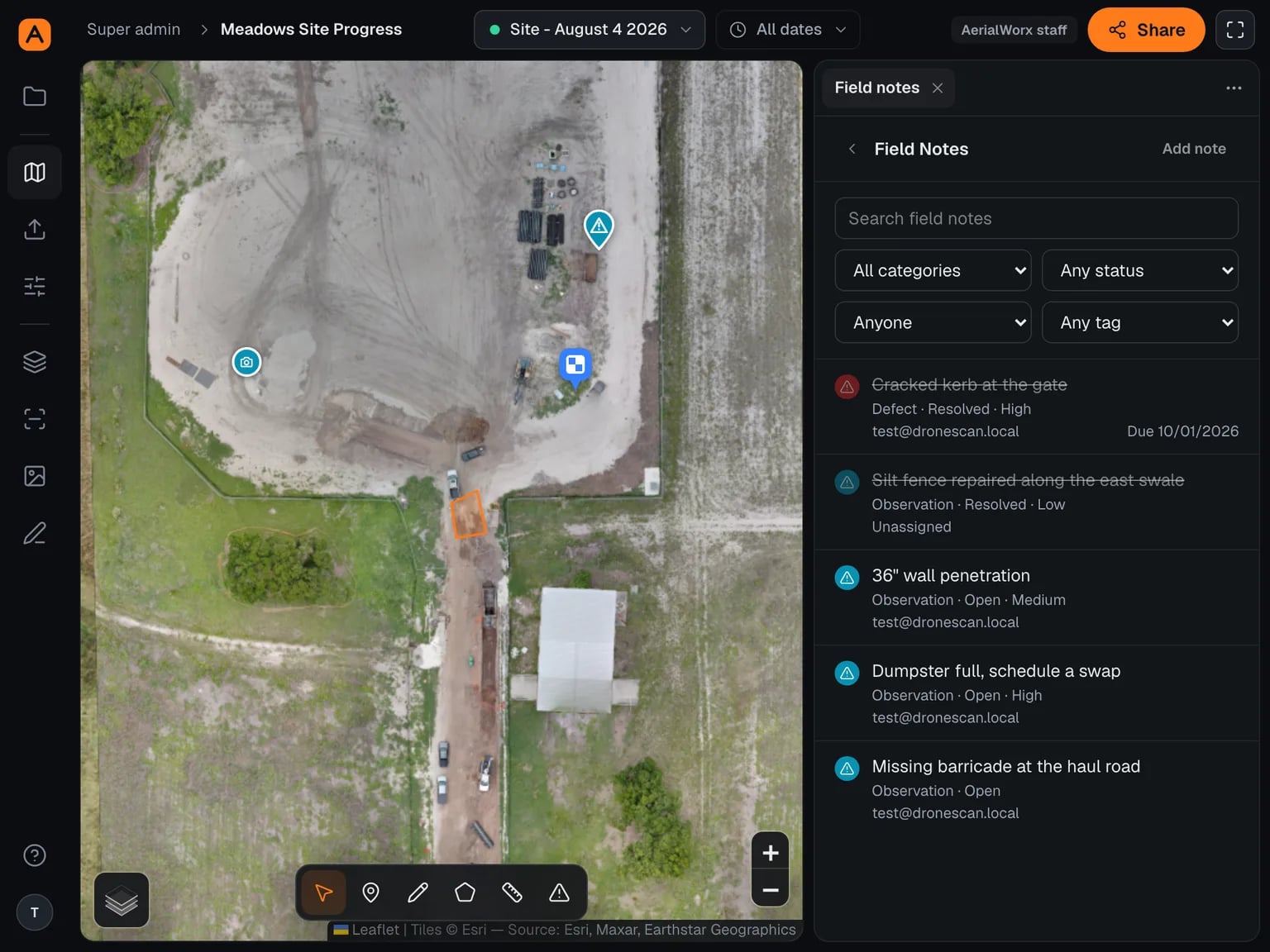
A note pinned to a place on the site, categorised as an observation, defect, safety, quality, RFI, progress or utility item. It takes a priority, a status, an assignee from the project, a due date and tags, and it holds a thread of comments and attachments — a flight photo linked in place, or a photo from your phone or computer. Notes belong to the site, not to one flight, so they stay put as new flights land.

How it works

  1. 01Click the map where the issue is and pick a category.
  2. 02Assign it, set a due date, attach the photo that shows it.
  3. 03Filter the list by category, status, assignee or tag; the sidebar shows how many are still open.

What you get

The punch list and the site are the same document, and nothing gets lost between a walk and a spreadsheet.

Field notes
Field notes pinned across a site with their categories

Vertical inspections

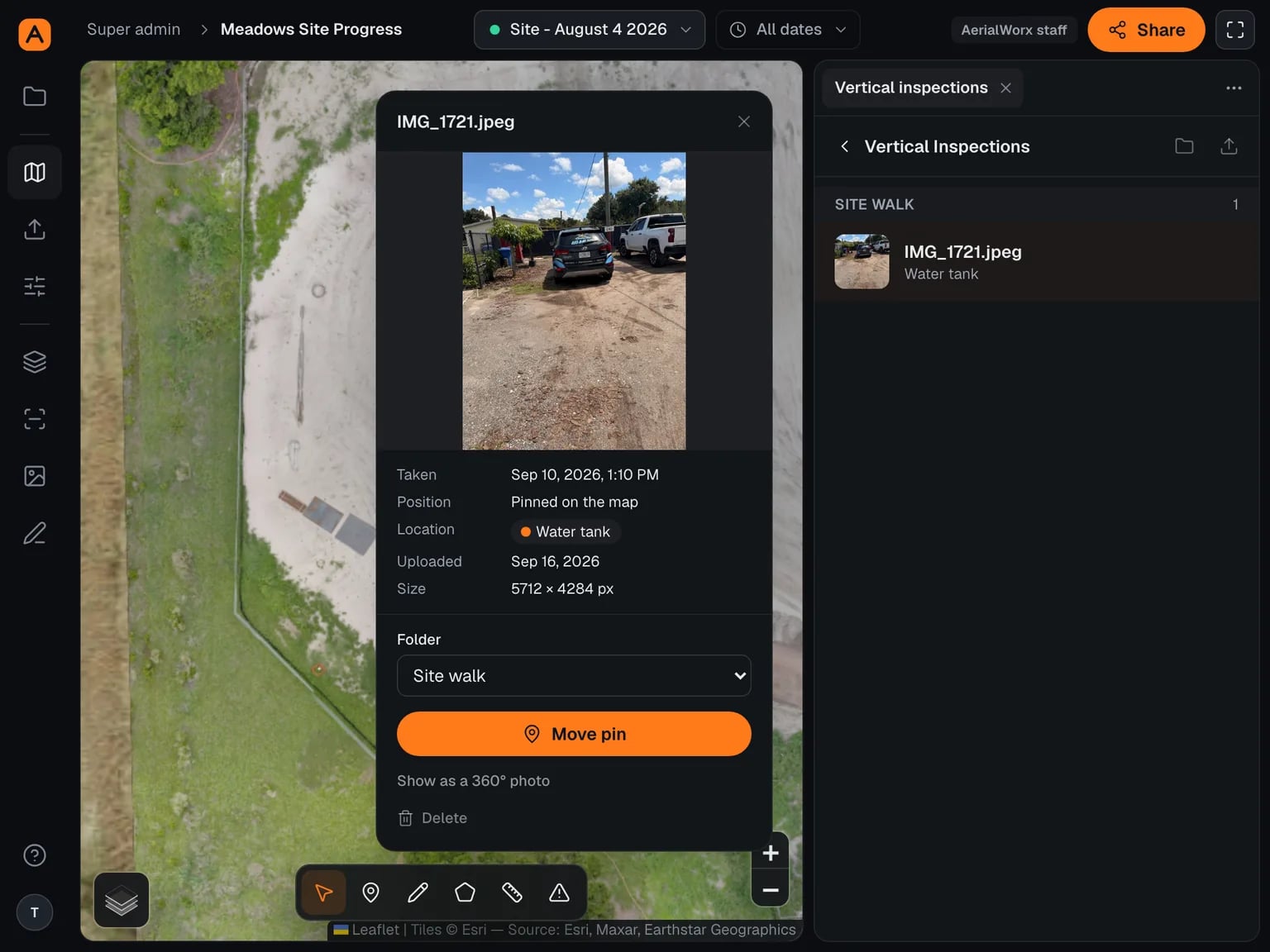
Upload a folder of photos from a walk — the folder name becomes the folder in the portal. Photos that carry their own position are pinned automatically and filed into whichever named locations they fall in; the ones without get queued so you can click them onto the map yourself.

How it works

  1. 01Pick the folder and send it; the summary says which locations the photos landed in.
  2. 02Place any that arrived without a position by clicking the map.
  3. 03Open a photo to see when it was taken, when it was uploaded, and the areas it belongs to.

What you get

A photo record tied to places on the site rather than to a date in a folder name — and it works before the first flight, on the plain site map.

Vertical inspections
Inspection photos pinned across a site

Ground control and accuracy

Tie the map to your control points, then check what it came out at.

Ground control points

For crews flying their own drone

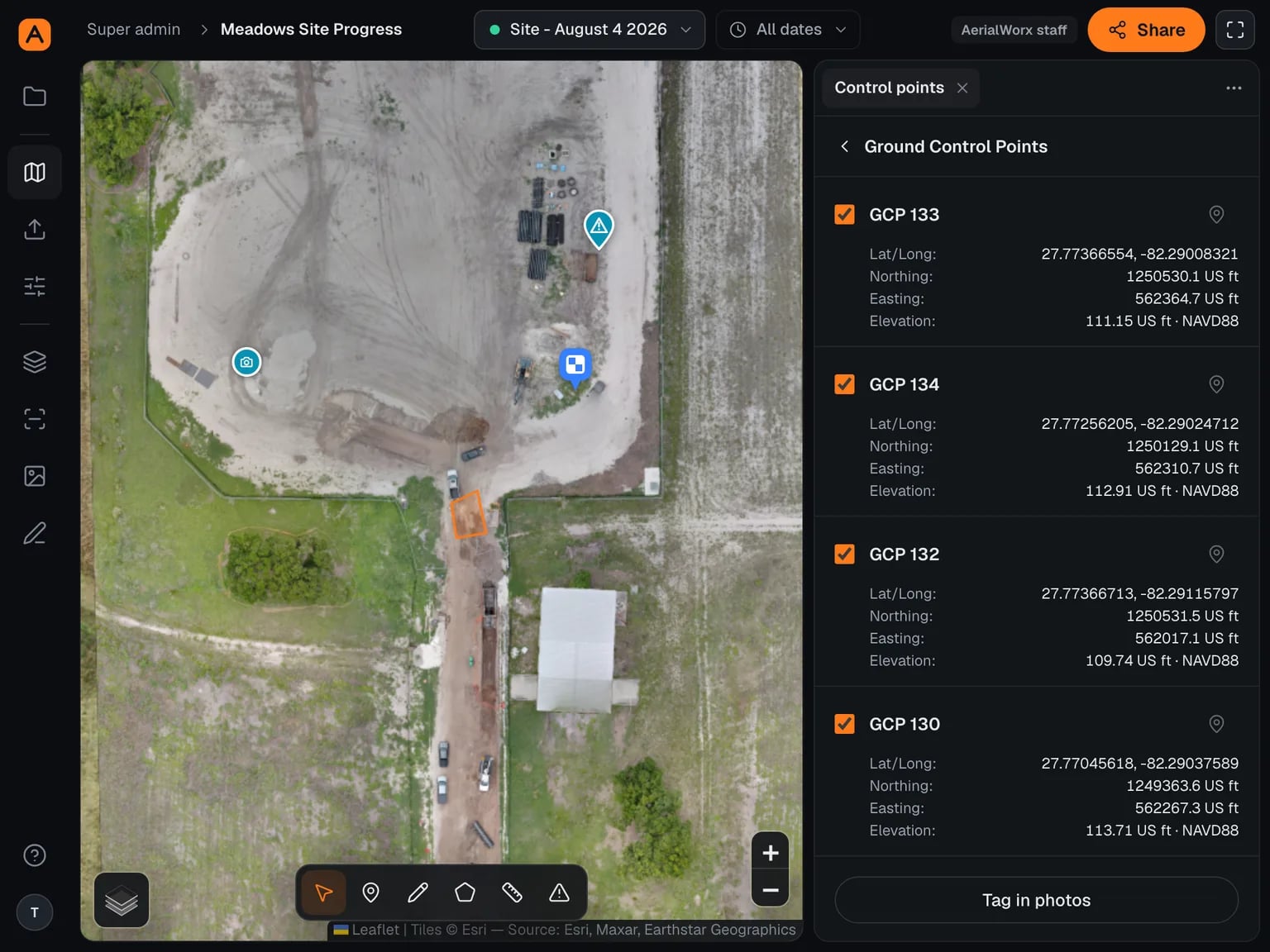
Type control points in as northing, easting and elevation in the project's projected coordinate system and its units, naming the vertical datum each height is on. They are shown on the map with a zoom-to, in both latitude and longitude and your own grid.

How it works

  1. 01Enter each point in the coordinate system you were given.
  2. 02Say whether each height is NAVD88 or ellipsoidal — this is the thing that quietly ruins a comparison when it is guessed.
  3. 03The points are then available to tag against your photos.

What you get

The map tied to your project's control, which is what makes the heights in it comparable to everything else on the job.

Ground control points
Control points listed with northing, easting and elevation

Control point tagging

For crews flying their own drone

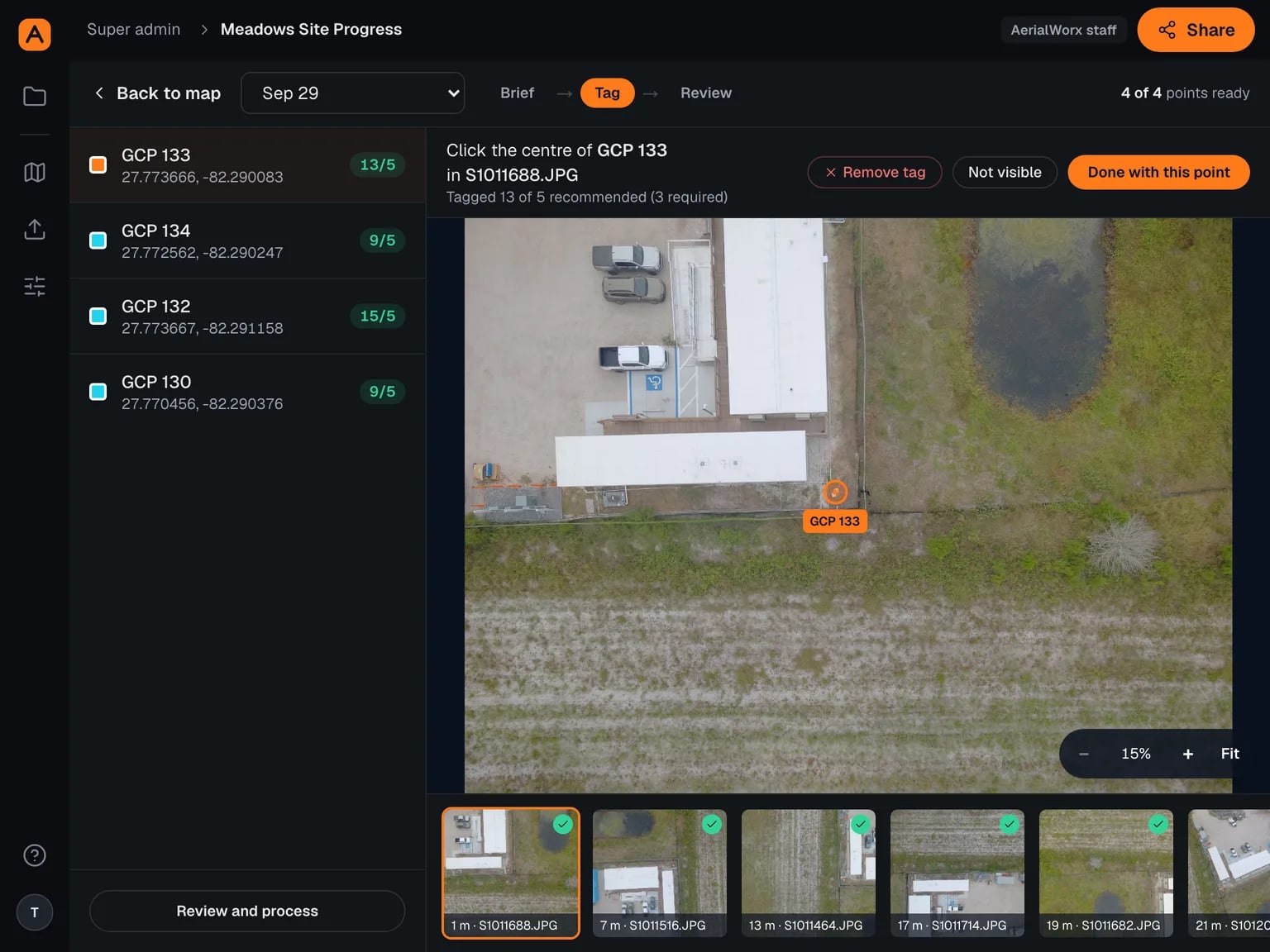
A four-step pass — brief, tag, review, done — that walks you through marking each control target in the photos that can see it. Photos are ranked by how close they were taken, and a rail tracks how many tags each point has. The review step shows exactly what will be sent and flags any point that would be dropped, with the reason.

How it works

  1. 01Upload a flight into a project that has control points; it waits instead of processing.
  2. 02Work through the targets — the wizard keeps offering you the next photo that should show one.
  3. 03Review, fix anything it flags, and launch with or without the control points.

What you get

Control applied to the run rather than to a spreadsheet afterwards, and no surprise about which points actually counted.

Control point tagging
The control point tagging wizard at the tagging step

Accuracy report

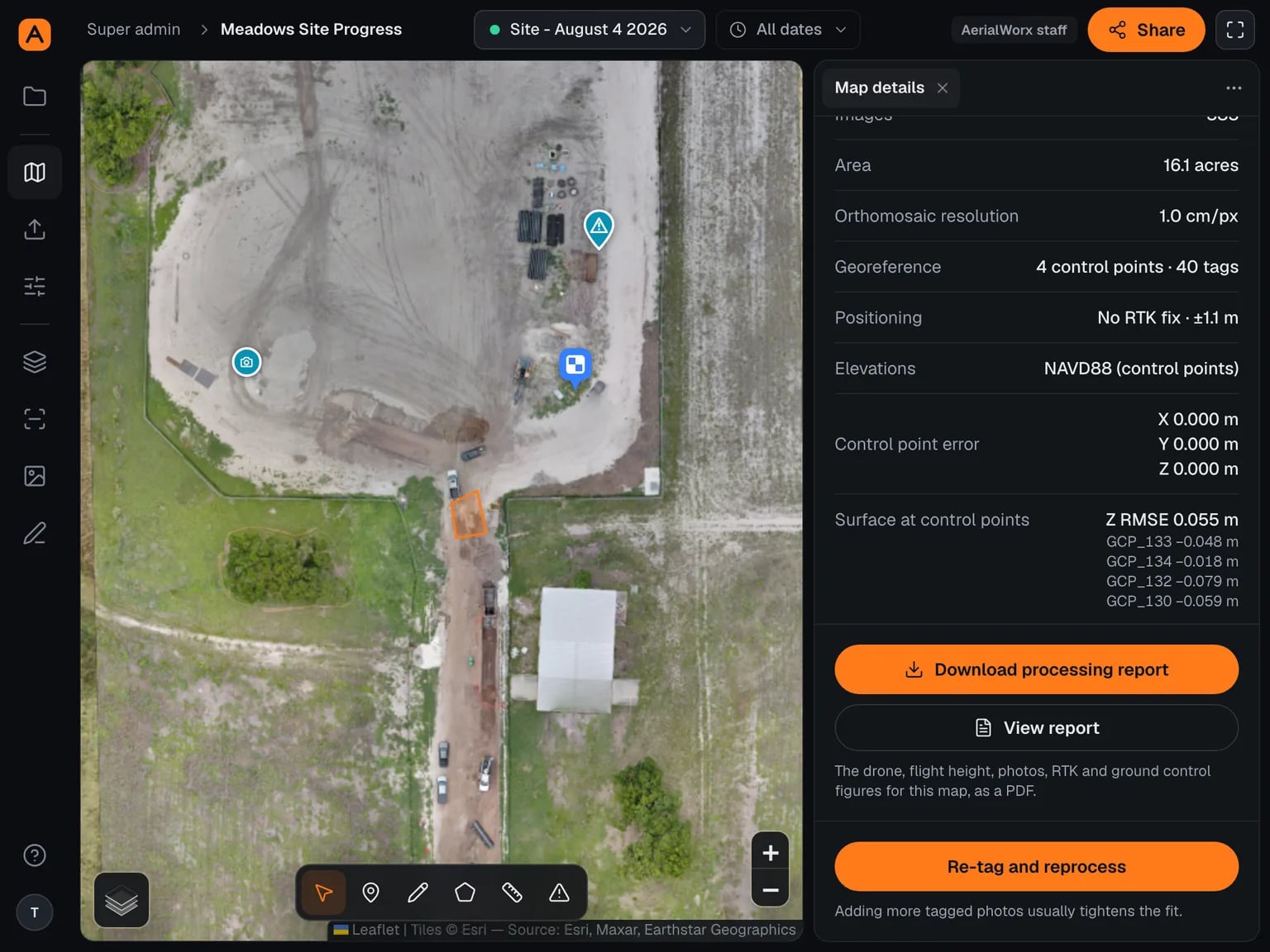
Every flight carries its own figures: how many images, how many acres, the delivered resolution in centimetres per pixel, whether it was tied to control or to the photos' own positions, and the residuals on each axis. A separate check reads the surface's height at each of your control points and reports the difference, with a warning when two datums have been mixed.

How it works

  1. 01Open the flight's details panel.
  2. 02Read the resolution, the control used, and the residuals.
  3. 03Check the height comparison at your own points before you rely on a number.

What you get

The ability to say what this map is good for, in figures from this flight. Accuracy is achievable with ground control, and the report is where you confirm you got it.

Accuracy report
A flight's accuracy figures and height check

Upload and team

Getting images in, and getting the right people to the result.

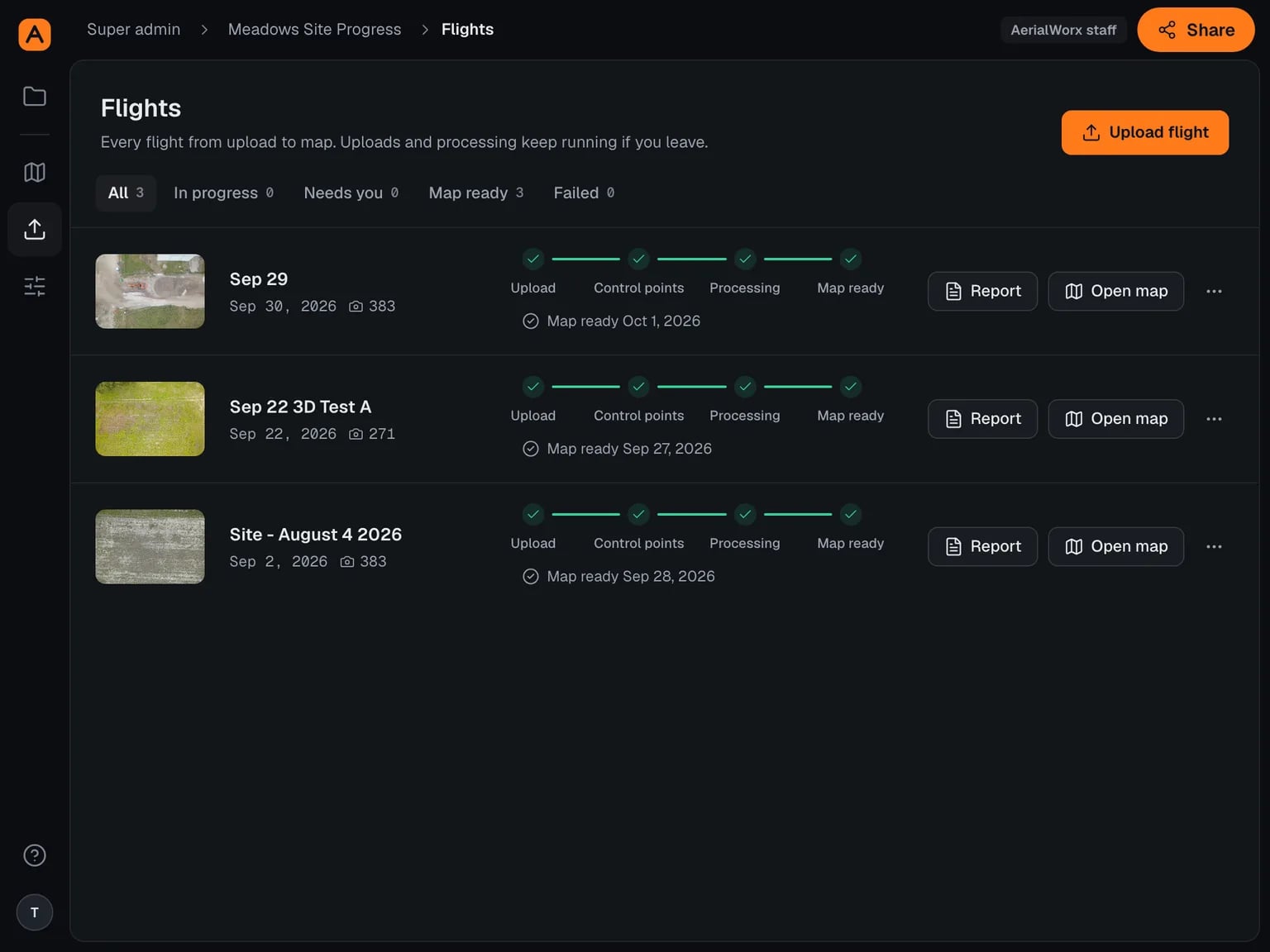
Flight upload

For crews flying their own drone

Drop the flight folder exactly as the drone wrote it. Images go straight to storage rather than through a web server, six at a time, and the transfer keeps running while you move around the portal. Thermal frames and anything that is not a photo are left out, and you can opt them back in.

How it works

  1. 01Name the flight and drag the folder.
  2. 02Carry on — a dock in the corner shows progress wherever you are.
  3. 03If a transfer stops, pick the folder again and only the missing images are sent.

What you get

A few hundred images on their way without babysitting a browser tab, and a clear way back if something interrupts it.

Flight upload
A flight upload in progress with the activity dock

Processing

For crews flying their own drone

Once the images land, the run reports its stage and percentage on the map and on the upload page. You can cancel a run in progress, retry one that failed, and clear one you no longer want.

How it works

  1. 01Start processing, or let it start itself when the flight is ready.
  2. 02Follow the stage and percentage while it runs.
  3. 03Cancel or retry from the upload page; a split or a memory fallback is noted on the finished flight.

What you get

Knowing where a job is without emailing anybody, and a way out when a flight needs re-running.

Processing
Processing progress for a flight
  • Aligning
  • Dense cloud
  • Surface
  • Orthomosaic

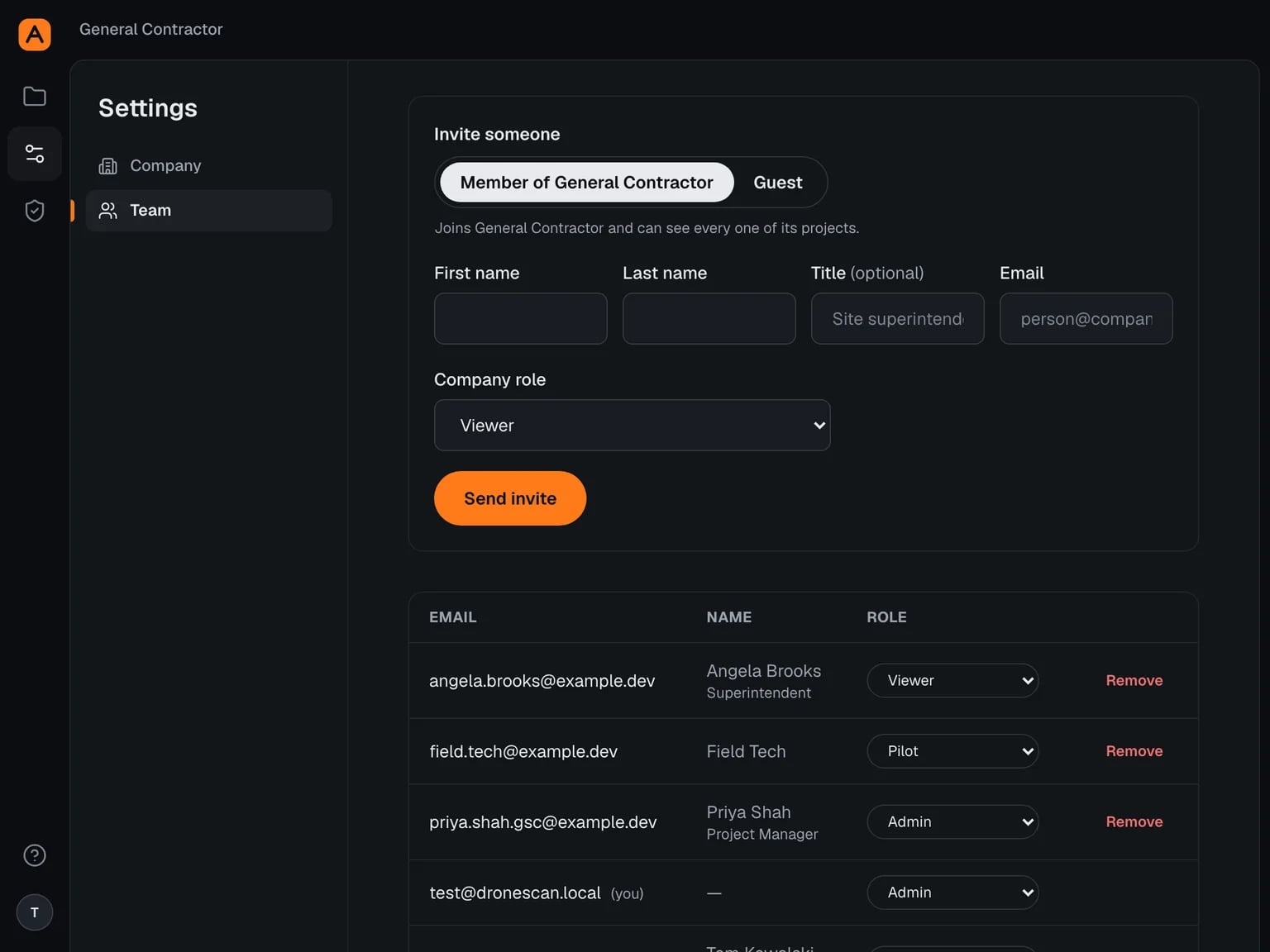
Team, guests and access

Your people get a role on the company and a role on each project. Subcontractors and owners come in as guests, named by their organisation, with view or edit access on the specific projects you tick. Access is by invitation — there is no open door to your site data — and your logo sits in the header.

How it works

  1. 01Invite someone as a member or a guest.
  2. 02Choose their role, and for guests, the projects they can open.
  3. 03Change a role or revoke an invitation from the team page at any time.

What you get

One version of the site that the owner, the GC and the subs all look at, without handing anyone the keys to everything.

Team, guests and access
The team page with members, guests and pending invitations

Get a quote

Tell us about the site. We’ll scope the flight within one business day.

What happens next

  1. 01We confirm airspace, access, and whether the job needs ground control.
  2. 02You get a fixed quote and a sample deliverable from a comparable job.
  3. 03First flight typically within 7 days of a signed scope.

Email

[email protected]

Phone

(407) 371-8131

Mailing address

400 North Tampa Street, 15th FloorTampa, Florida 33602
Add-ons (optional)

No commitment. We reply within one business day; add-ons are priced in the quote.